How to Take a Long Screenshot on iPhone Duo
To take a long screenshot on iPhone Duo, use Safari’s Full Page option for webpages, or use ScrollShot to combine a scrolling screen recording or overlapping screenshots into one image. Safari is the simplest place to start; ScrollShot gives you a practical workflow for chats, app content, and pages that need more control.
Apple’s newly released iPhone Duo is its first foldable iPhone, with an outer display and a larger inner display. That extra space is useful for reading, but a conversation or article can still extend far beyond the screen. Apple’s iPhone Duo announcement describes the new design.
This guide covers both methods, explains which one to choose, and shows how to avoid repeated text, missing sections, and awkward joins.
Which long screenshot method should you use?
A regular screenshot captures the current view. A long screenshot preserves more of the content in one continuous result, so readers do not have to open several images and guess their order.
| What you want to capture | Start with | Why |
|---|---|---|
| A complete article or webpage in Safari | Safari Full Page | Built into iPhone and quick to use |
| A chat or scrollable app screen | ScrollShot Auto Stitch | Builds a long image from recorded scrolling |
| Several screenshots you already have | ScrollShot Manual Stitch | Combines overlapping captures in sequence |
| A result with joins that need adjustment | ScrollShot | Offers seam fine-tuning before saving |
For example, use Safari to save a travel article. Use ScrollShot when you need to send the complete conversation about that trip, including messages below the visible screen.
Method 1: Take a full-page screenshot in Safari
Start here when the content is a webpage. Open the actual page in Safari, let its images load, and dismiss menus or banners that cover the text. If a link opened inside another app, move it into Safari before trying this workflow.
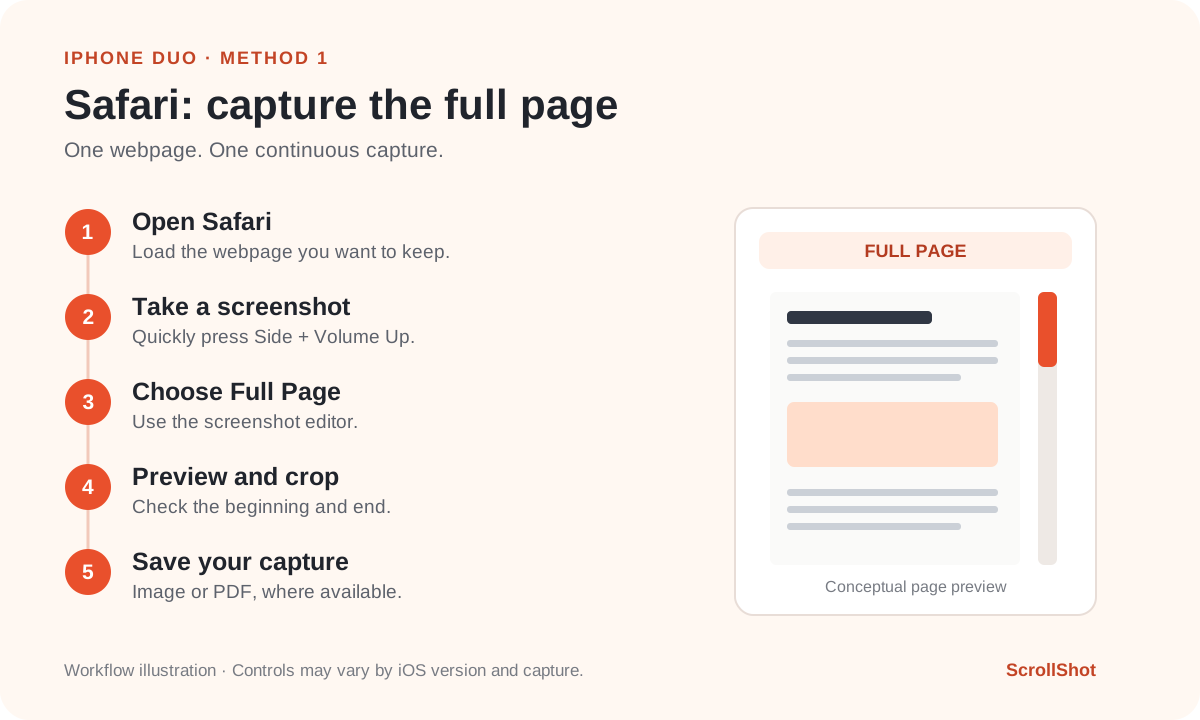
Workflow illustration; the exact editor controls can vary with your iOS version and screenshot settings.
Capture and save the page
- Open the webpage in Safari. Navigate to the content you want to keep.
- Press and quickly release the side button and volume-up button together.
- Open the screenshot editor. Tap the thumbnail if one appears; depending on your settings, a full-screen preview may open directly.
- Choose Full Page. Use the preview on the right to inspect the capture, and crop it if needed.
- Save the result. Open the save controls, then choose the available image or PDF option.
These capture and preview steps follow Apple’s current iPhone screenshot guide.
Choose Save to Photos when available for an image, or Save PDF to Files for a PDF. Apple documents both options in its full-page screenshot instructions, so older advice that Safari captures are always PDF-only is incomplete. Labels and availability can vary by software version and capture.
When Safari is enough—and when to switch
Safari works well for a straightforward page you want to read later. Before sharing, check the beginning, middle, and end: a long-looking preview is not proof that every section you wanted is included.
If Full Page is missing, try a normal article opened directly in Safari. This helps distinguish a page-specific problem from a broader issue. For an endlessly loading feed, a chat, or content whose preview is incomplete, move to ScrollShot and capture the specific section you need.
Method 2: Create a long screenshot with ScrollShot
ScrollShot for iPhone creates long images in two ways: it can extract and stitch frames from a scrolling screen recording, or combine screenshots you select yourself.
Manual stitching is free. Screen-recording auto stitching and video import require ScrollShot Pro. Check the app for current subscription options.
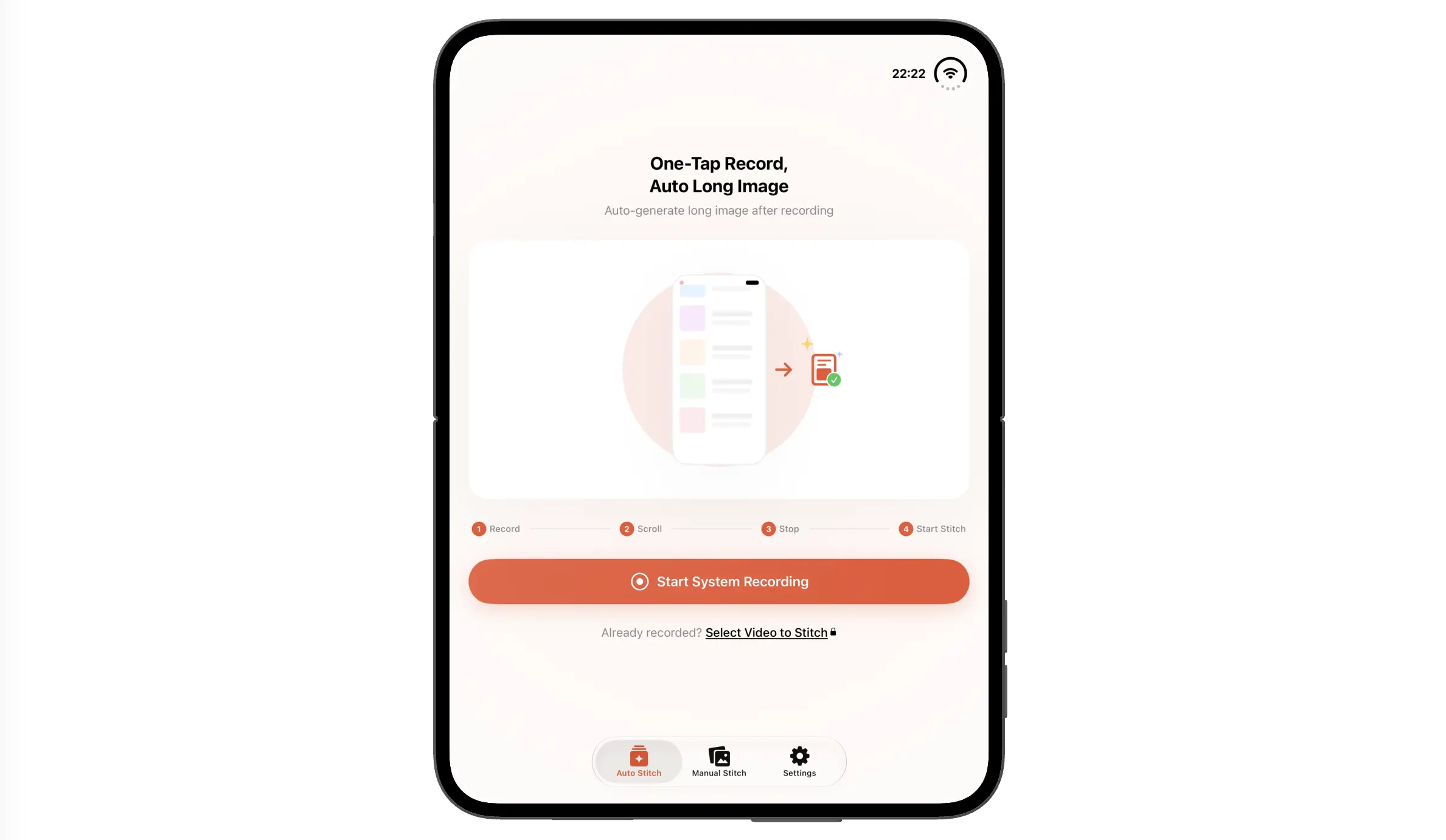
Start a new recording from Auto Stitch, or import a recording you already have.
Option A: Record your scrolling and stitch automatically
This is useful for a long conversation, a sequence of app screens in one scrollable view, or a webpage that Safari does not capture as expected.
- Prepare the content. Find the beginning of the section you need. Close the keyboard and dismiss pop-ups so they do not cover the page.
- Open ScrollShot and select Auto Stitch. Tap Start System Recording, then follow the iOS recording prompt for ScrollShot.
- Switch to the content and scroll steadily. Move through it in one direction. Pause briefly where images need time to load, and avoid jumping between unrelated pages.
- Stop recording at the end. Use the system recording control. Return to ScrollShot, or open its recording-complete notification if enabled.
- Keep the useful segment. In the trimming view, exclude the time spent opening apps or navigating away. Tap Start Stitching to process the selected content.
- Review and save. Inspect the long image, adjust joins when necessary, and save the finished result to Photos.
If you already have a scrolling screen recording in your library, choose Select Video to Stitch on the Auto Stitch screen. Import it, trim the relevant portion, and continue with stitching.
You still control the scrolling. ScrollShot analyzes the captured frames, finds overlapping content, and combines it into a long image. A steady recording gives it better source material than fast swipes through changing content.
Option B: Stitch existing screenshots
For a shorter conversation or screenshots you have already taken, Manual Stitch gives you direct control over the sequence.
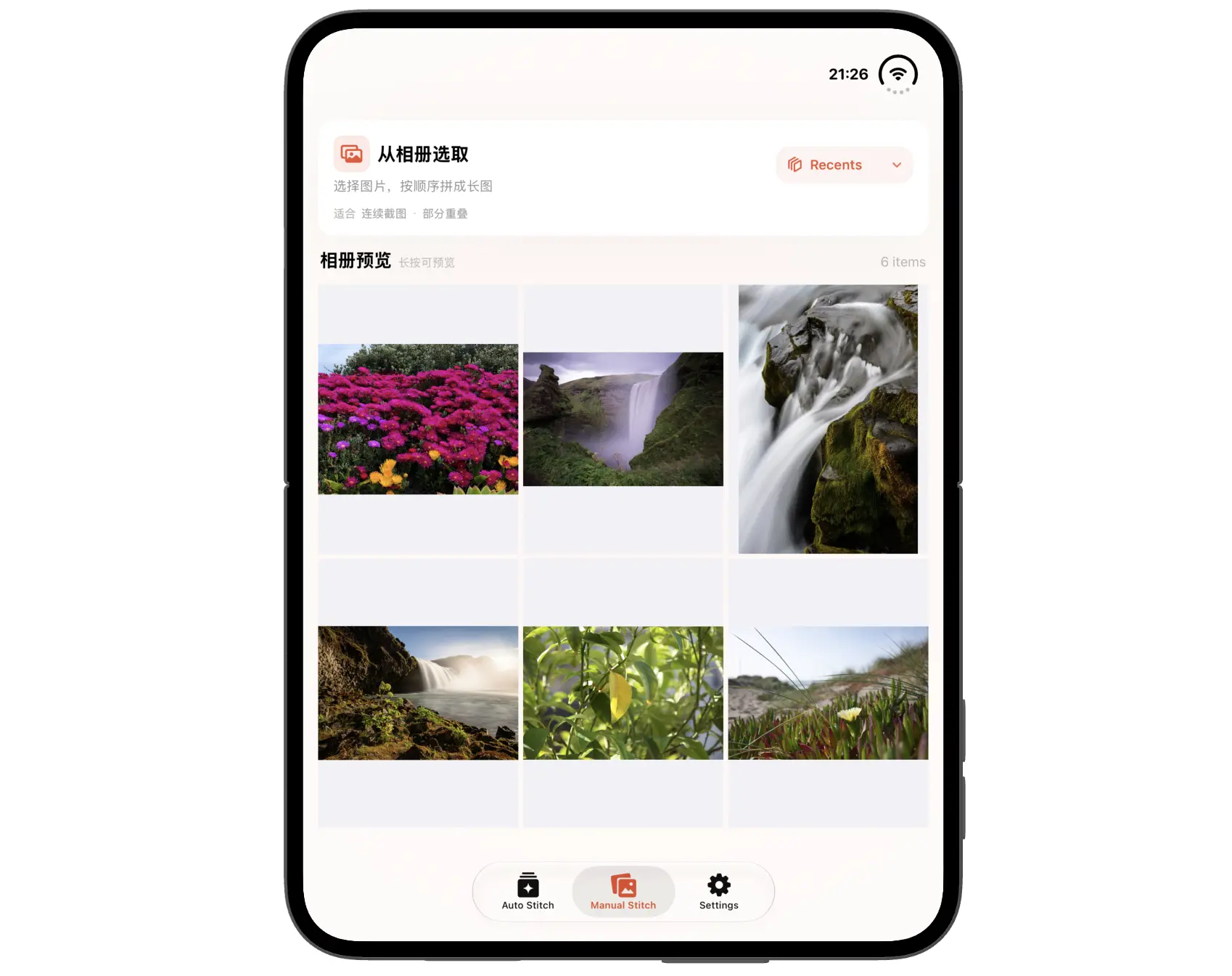
Browse your album in Manual Stitch, then select overlapping screenshots in reading order. The example shows the album browser before selection.
- Capture the first section, then scroll down partway before taking the next screenshot.
- Leave several lines or a recognizable block of content visible in both neighboring images. That overlap helps the app identify where they join.
- Open Manual Stitch in ScrollShot and allow access to the screenshots you want to use.
- Select them from top to bottom in reading order. Check the selection numbers before continuing.
- Choose Long Shot for overlapping screenshots, then inspect the stitched preview and save it.
By default, ScrollShot keeps your selection order. If you have enabled Manual Stitch Sort in Settings, it sorts by creation time instead. Check that setting if the preview begins with the wrong image.
Avoid mixing screenshots with different text sizes, zoom levels, or display layouts. Even if they show the same page, the lines may wrap differently and no longer match.
Fine-tune and share the result
Zoom in around each join. Look for repeated sentences, missing message bubbles, or an image cut in half. Use ScrollShot’s fine-tuning tools to adjust the stitching boundaries when needed. Its scrollbar cleanup can also remove common scrollbar traces; review the result afterward.
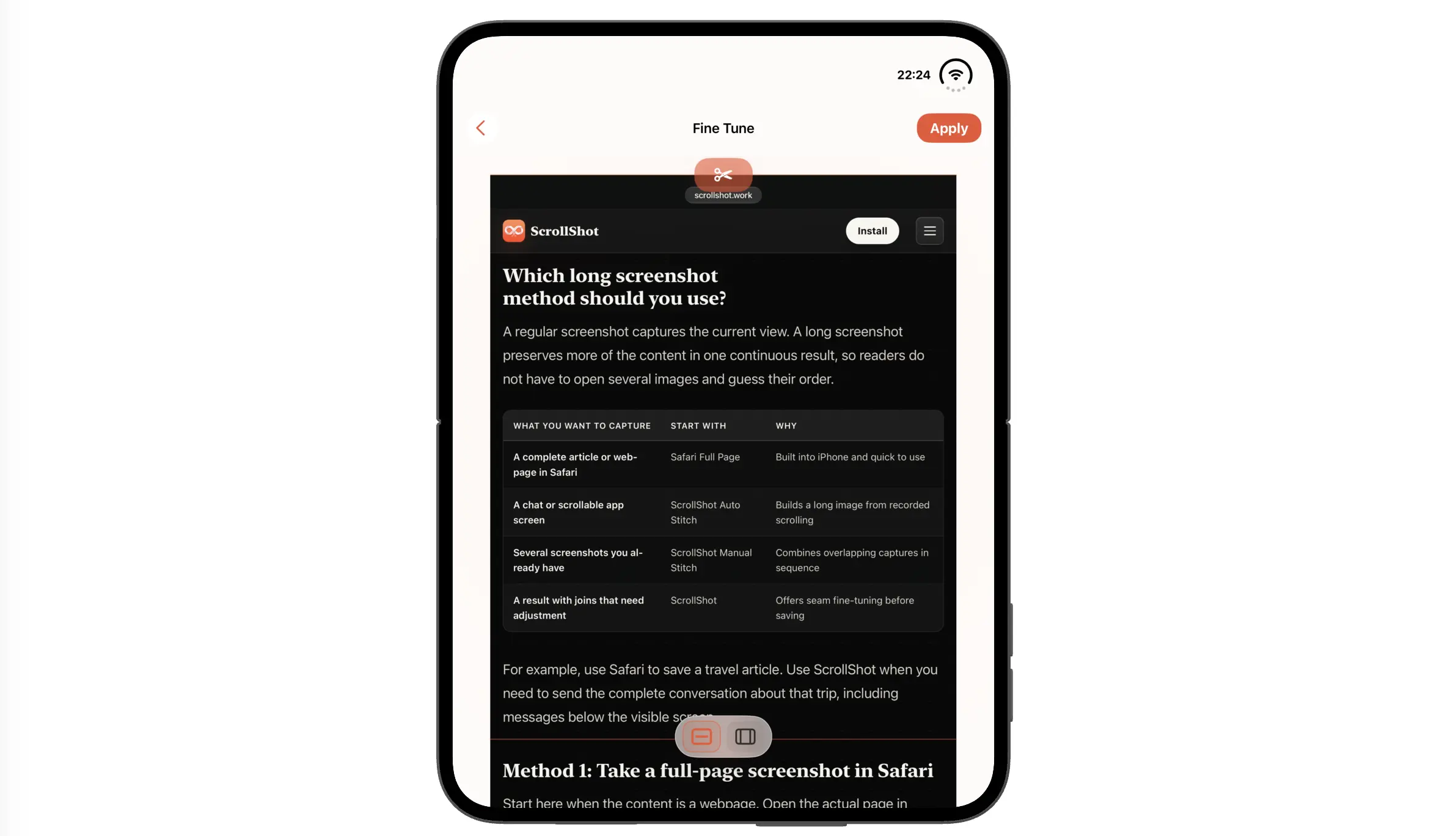
The fine-tuning controls let you correct joins before sharing. This product image shows the interface on a standard iPhone.
After saving, share the long image or use Share PDF. For a closer look at the available workflows, see our ScrollShot feature guide.
Adjust settings and appearance
Open Settings to check photo access and recording notifications, or adjust album previews and scrollbar cleanup.
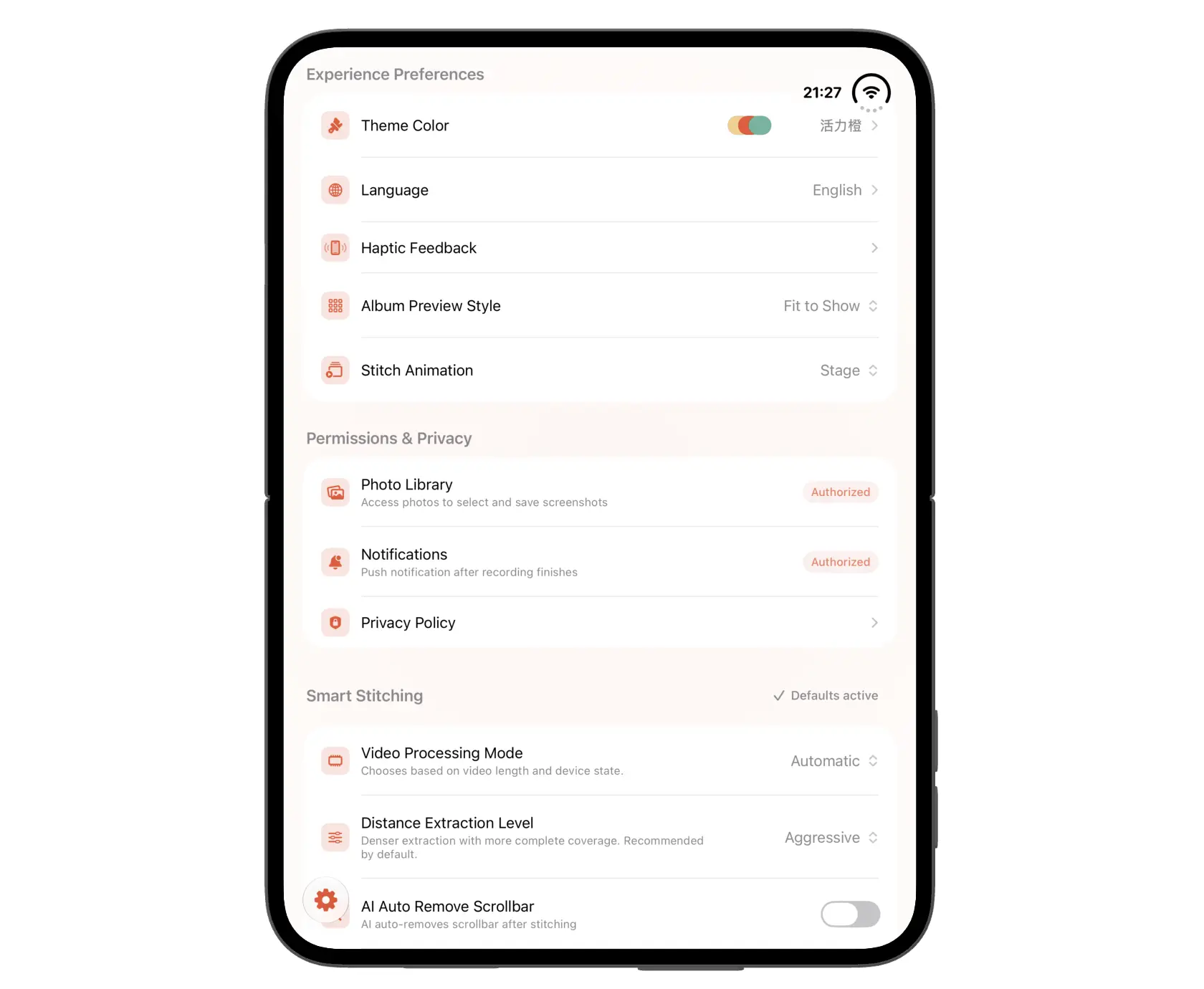
Settings brings capture preferences and permissions together.
Under Theme Color, choose an app palette you enjoy using. Options include Vibrant Orange, Classic Dark, and Aqua Ivory; crown-marked themes require Pro.
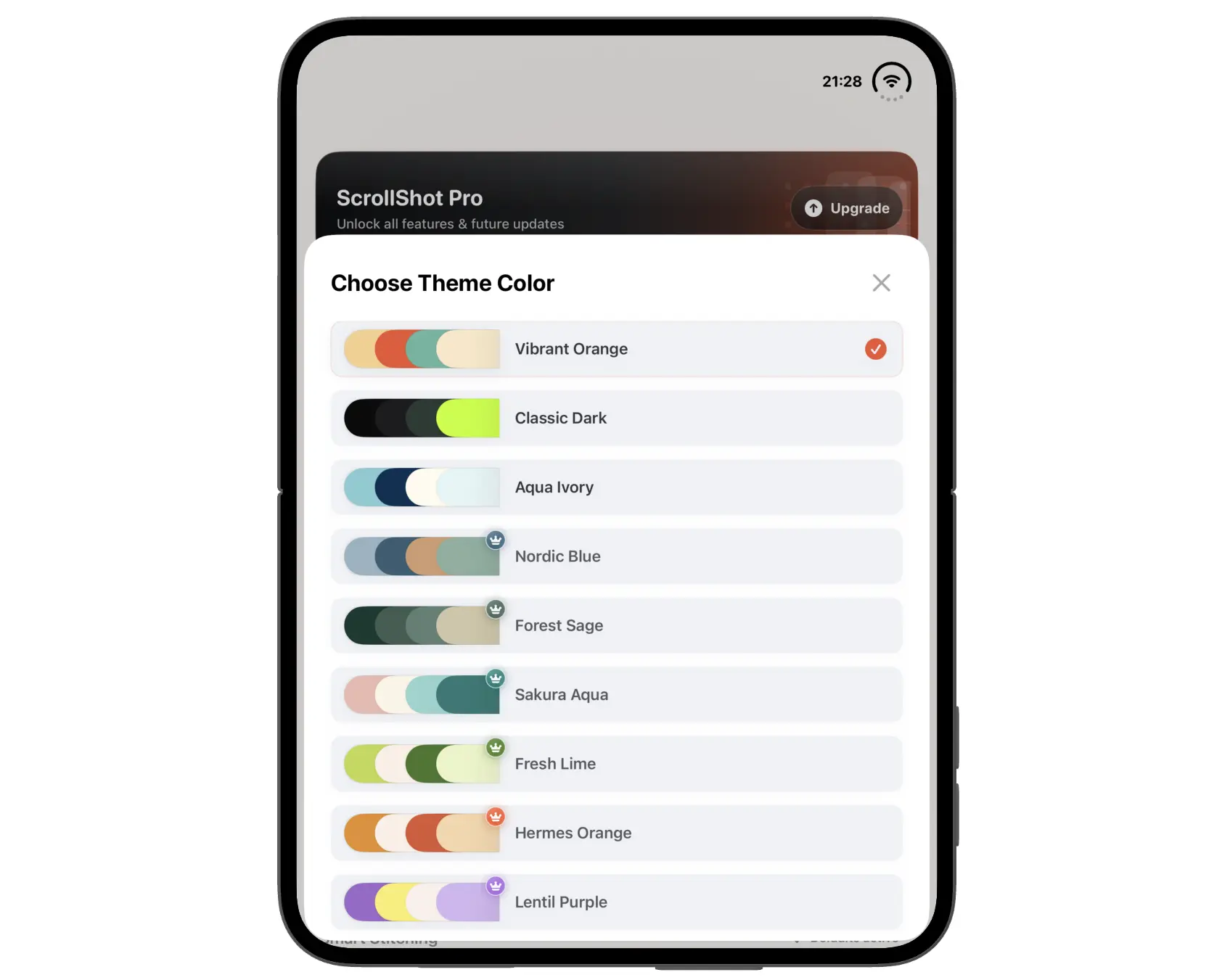
Personalize the ScrollShot interface from the theme picker.
Tips for cleaner captures on iPhone Duo
Choose your layout before starting. Decide whether to use the outer or inner display, then keep the same orientation and app width throughout the capture. As a practical stitching precaution, avoid folding, unfolding, or resizing the app midway through a recording.
Capture one readable section at a time. A single image containing an entire lengthy conversation can become inconvenient to read or send. Separate it at natural topic breaks if necessary.
Check the source before repeating the stitch. Missing content usually needs a better recording or another screenshot. Fine-tuning cannot restore text that was never captured. If a join looks wrong, first check for a gap between the source images.
Review the shared copy. Some messaging services shrink large images. Open what you sent and check the text; use a file attachment or PDF if that better preserves readability for the recipient.
Frequently asked questions
Can I take a long screenshot on iPhone Duo without an app?
Yes. Use Safari’s Full Page option for supported webpages. For content that does not offer Full Page, use ScrollShot to stitch a scrolling recording or overlapping screenshots.
Can I save a long screenshot as an image instead of a PDF?
Yes. Choose Save to Photos when available in the screenshot editor. ScrollShot also saves stitched images to Photos and supports sharing as PDF.
Is ScrollShot free to use?
Manual screenshot stitching is free. Automatic stitching from screen recordings and importing a video to stitch require ScrollShot Pro. Check the app for current subscription options.
Should I fold or unfold iPhone Duo while recording?
Choose your display layout before recording and keep it consistent. If the content changes width or rearranges during capture, start a new recording for that layout.
For your next capture, try Safari Full Page for a webpage. When you need a long image from a chat, a recording, or existing screenshots, download ScrollShot and choose the workflow that fits your content.